

티스토리 뷰
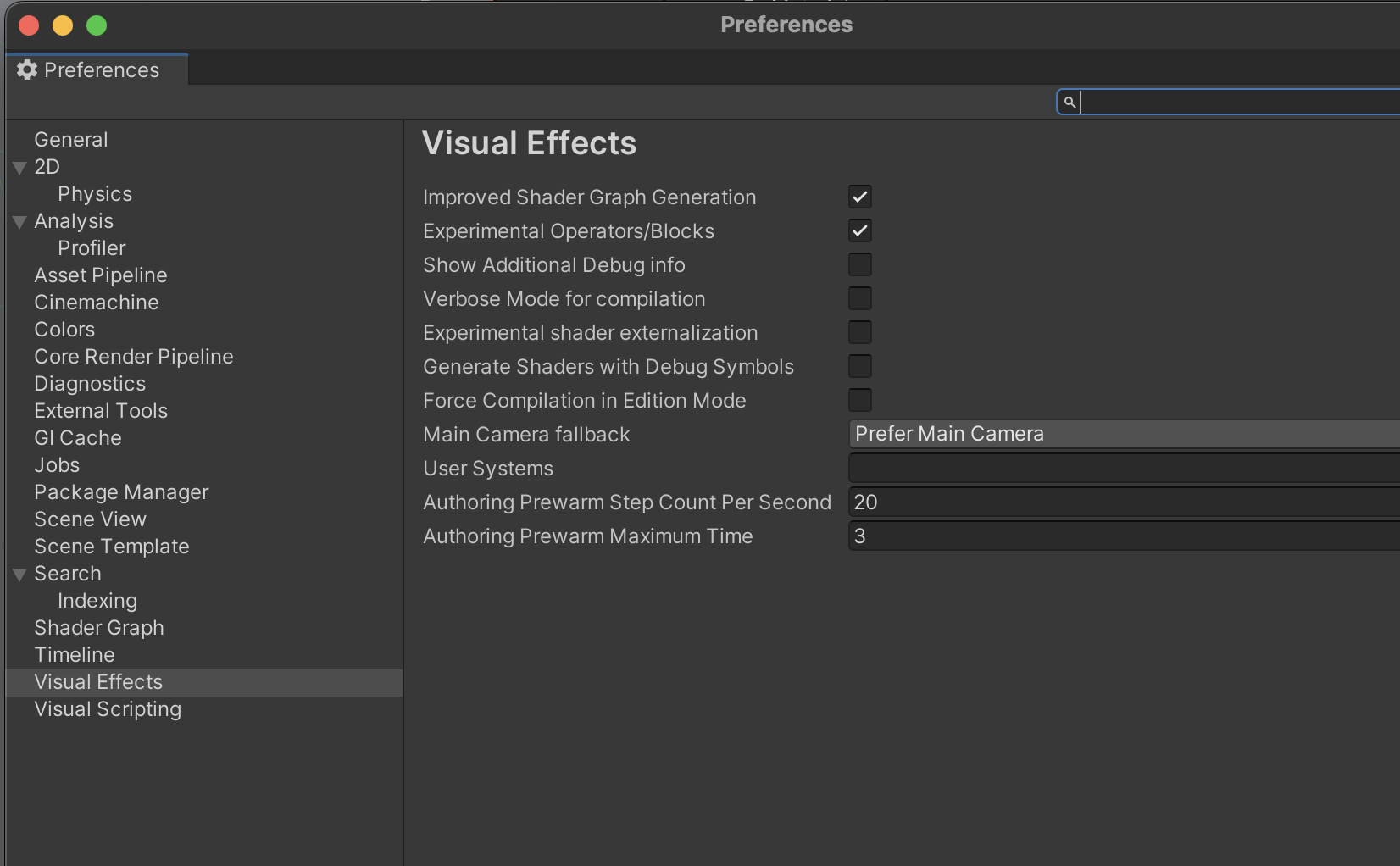
준비 1. visual Effects ( 유니티 프리퍼런스, 셋팅에 있음)
커스텀 노트 만들 수 있어야함. ( 선택, 꼭 필요하지 않을수도..)
준비 2. json 파일. 시작점 끝점 정보를 가진 데이터파일
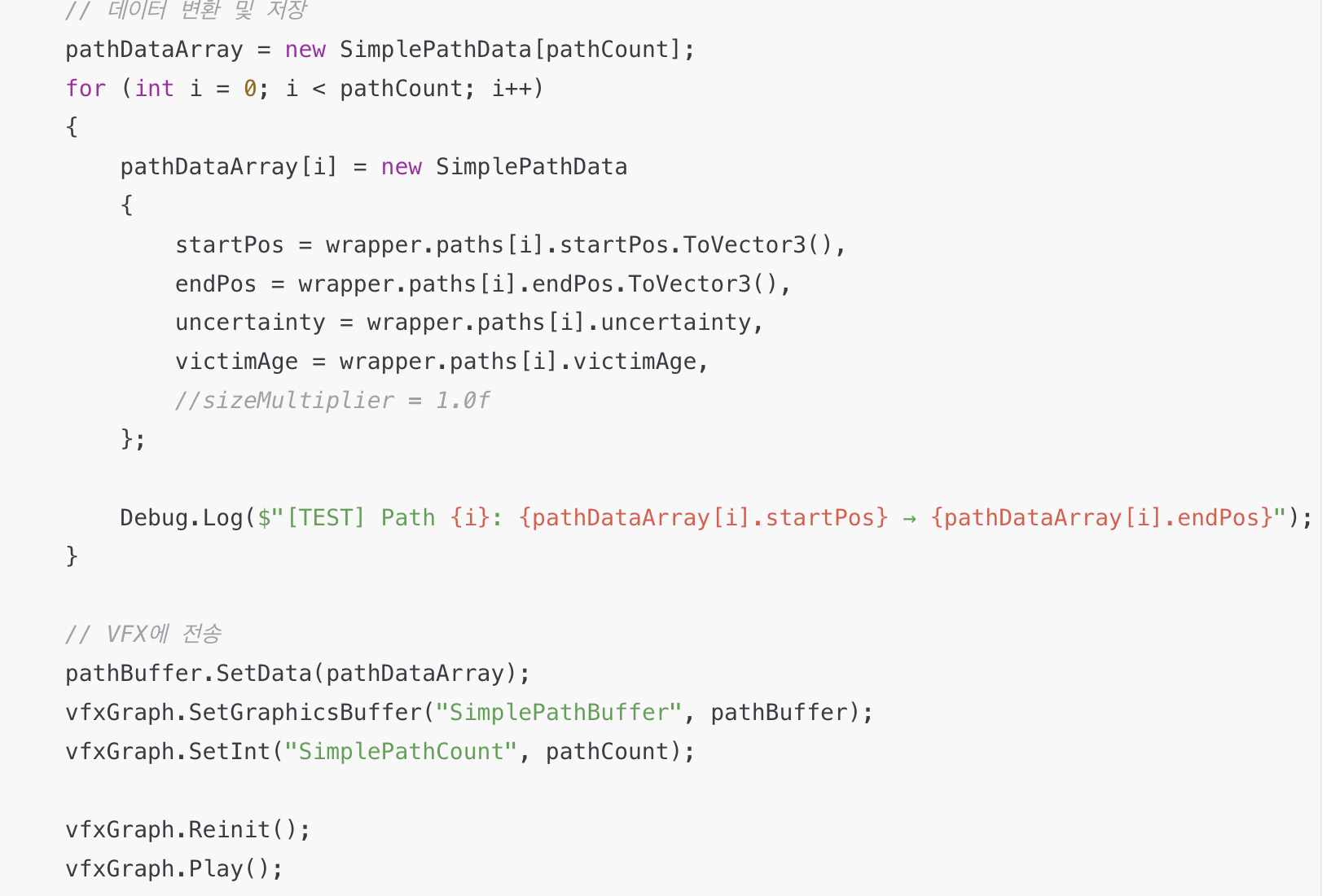
이부분이 중요함. vfx 그래프에서 이부분을 가져다 씀. simplepathdate*
{
  "paths": [
    {
      "startPos": { "x": -205.804, "y": 6.231, "z": 120.434 },
      "endPos": { "x": -268.549, "y": 5.314, "z": 148.032 },
      "uncertainty": 0.0,
      "victimAge": 28
    },
    {
      "startPos": { "x": -305.804, "y": 6.231, "z": 120.434 },
      "endPos": { "x": -28.017, "y": 6.467, "z": 129.938 },
      "uncertainty": 0.0,
      "victimAge": 0
    }
  ]
}
준비 3. 스크립트 : json을 불러와서 파싱하고 >>> vfx 로 값 보낼수있음.
**여기서 중요한건 데이터 구조를 만드는건데
using UnityEngine;
using UnityEngine.VFX;
using System.Collections.Generic;

// ===== VFX Graph용 구조체 =====
[System.Serializable]
[VFXType(VFXTypeAttribute.Usage.GraphicsBuffer)]  // ← 이것도
public struct SimplePathData
{
    public Vector3 startPos;
    public Vector3 endPos;
    public float uncertainty;
    public uint victimAge;
    //public float sizeMultiplier;
}

// ===== JSON 파싱용 클래스들 =====
[System.Serializable]
public class Vector3Data
{
    public float x, y, z;
    public Vector3 ToVector3() => new Vector3(x, y, z);
}

[System.Serializable]
public class PathEntry
{
    public Vector3Data startPos;
    public Vector3Data endPos;
    public float uncertainty;
    public uint victimAge;
}

[System.Serializable]
public class PathDataWrapper
{
    public List<PathEntry> paths;
}

// ===== 메인 스크립트 =====
public class SimplePathTest : MonoBehaviour
{
    [Header("VFX")]
    public VisualEffect vfxGraph;

    [Header("Test Data")]
    public TextAsset jsonFile;

    [Header("Player")]
    public Transform player;
    public float detectionRadius = 50f;
    public float enlargeSize = 5f;

    private GraphicsBuffer pathBuffer;
    private int pathCount = 0;
    private SimplePathData[] pathDataArray;

    void Start()
    {
        LoadTestData();
    }

    void LoadTestData()
    {
        // JSON 파싱
        PathDataWrapper wrapper = JsonUtility.FromJson<PathDataWrapper>(jsonFile.text);
        pathCount = wrapper.paths.Count;

        Debug.Log($"[TEST] {pathCount}개 경로 로드됨");

        // GraphicsBuffer 생성
        int stride = System.Runtime.InteropServices.Marshal.SizeOf(typeof(SimplePathData));
        pathBuffer = new GraphicsBuffer(
            GraphicsBuffer.Target.Structured,
            pathCount,
            stride
        );

        // 데이터 변환 및 저장
        pathDataArray = new SimplePathData[pathCount];
        for (int i = 0; i < pathCount; i++)
        {
            pathDataArray[i] = new SimplePathData
            {
                startPos = wrapper.paths[i].startPos.ToVector3(),
                endPos = wrapper.paths[i].endPos.ToVector3(),
                uncertainty = wrapper.paths[i].uncertainty,
                victimAge = wrapper.paths[i].victimAge,
                //sizeMultiplier = 1.0f
            };

            Debug.Log($"[TEST] Path {i}: {pathDataArray[i].startPos} → {pathDataArray[i].endPos}");
        }

        // VFX에 전송
        pathBuffer.SetData(pathDataArray);
        vfxGraph.SetGraphicsBuffer("SimplePathBuffer", pathBuffer);
        vfxGraph.SetInt("SimplePathCount", pathCount);

        vfxGraph.Reinit();
        vfxGraph.Play();

        StartCoroutine(CheckParticles());
    }

    void Update()
    {
        // Player 위치만 VFX에 전송
        if (player != null)
        {
            vfxGraph.SetVector3("PlayerPosition", player.position);
            vfxGraph.SetFloat("DetectionRadius", detectionRadius);
            vfxGraph.SetFloat("EnlargeSize", enlargeSize);
        }

        if (Input.GetKeyDown(KeyCode.Space))
        {
            Debug.Log($"Alive: {vfxGraph.aliveParticleCount}");
        }
    }


    System.Collections.IEnumerator CheckParticles()
    {
        yield return new WaitForSeconds(1f);
        Debug.Log($"[TEST] Alive Particles: {vfxGraph.aliveParticleCount}");
    }

    void OnDestroy()
    {
        if (pathBuffer != null)
        {
            pathBuffer.Release();
            pathBuffer = null;
        }
    }

    void OnDrawGizmos()
    {
        if (pathDataArray != null && pathDataArray.Length > 0)
        {
            for (int i = 0; i < pathDataArray.Length; i++)
            {
                // 시작점 (빨강)
                Gizmos.color = Color.red;
                Gizmos.DrawSphere(pathDataArray[i].startPos, 5f);

                // 끝점 (파랑)
                Gizmos.color = Color.blue;
                Gizmos.DrawSphere(pathDataArray[i].endPos, 5f);

                // 연결선
                Gizmos.color = Color.yellow;
                Gizmos.DrawLine(pathDataArray[i].startPos, pathDataArray[i].endPos);

                // 감지 범위
                if (player != null)
                {
                    float distance = Vector3.Distance(player.position, pathDataArray[i].startPos);
                    if (distance < detectionRadius)
                    {
                        Gizmos.color = new Color(1, 1, 0, 0.3f);
                        Gizmos.DrawSphere(pathDataArray[i].startPos, 10f);
                    }
                }
            }
        }

        // 플레이어 감지 범위
        if (player != null)
        {
            Gizmos.color = new Color(0, 1, 0, 0.2f);
            Gizmos.DrawWireSphere(player.position, detectionRadius);
        }
    }
}
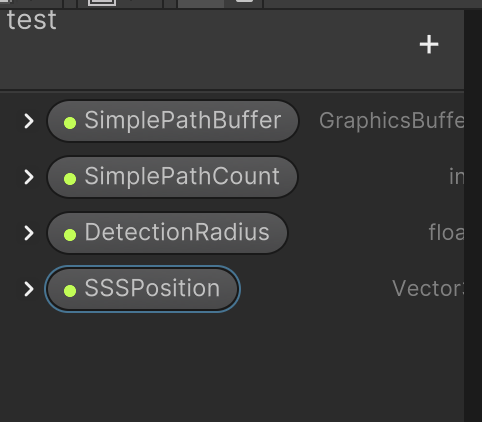
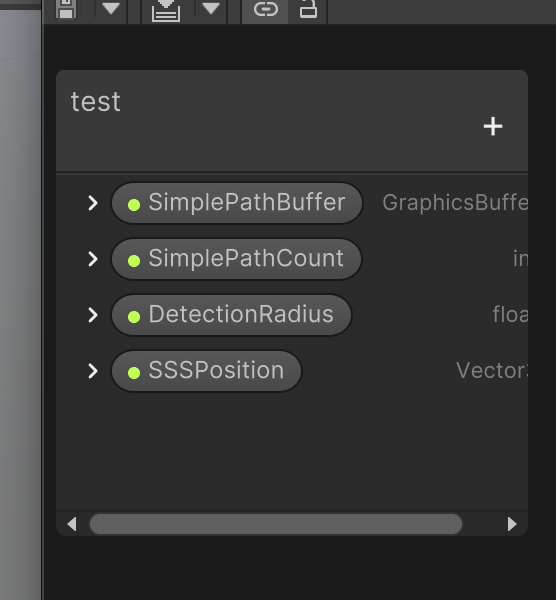
준비 4 : VFX 그래프에서 ***grapicsbuffer 이거를 만들어줘야함.
이름에 주의하자 ! 값을 받아올때 이름이 같아야 받아와짐.
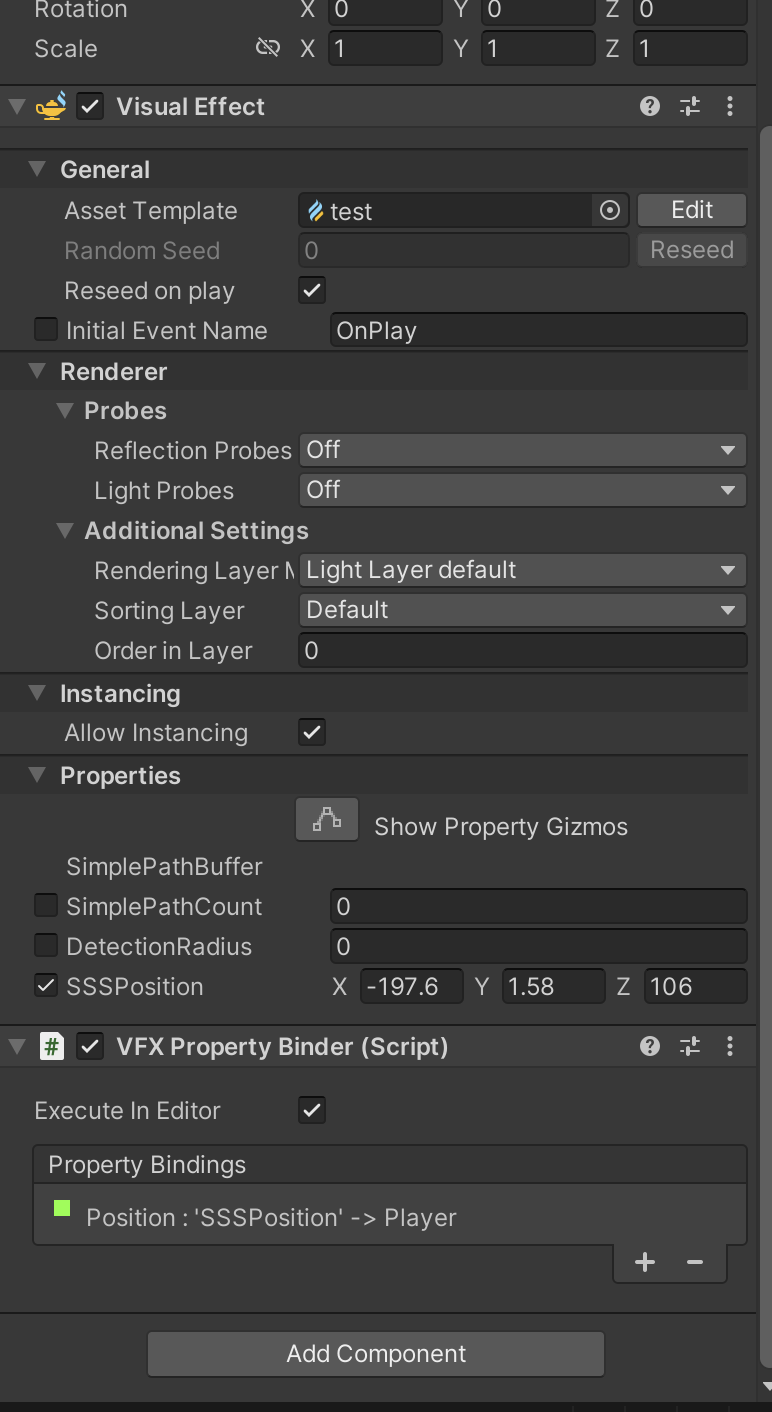
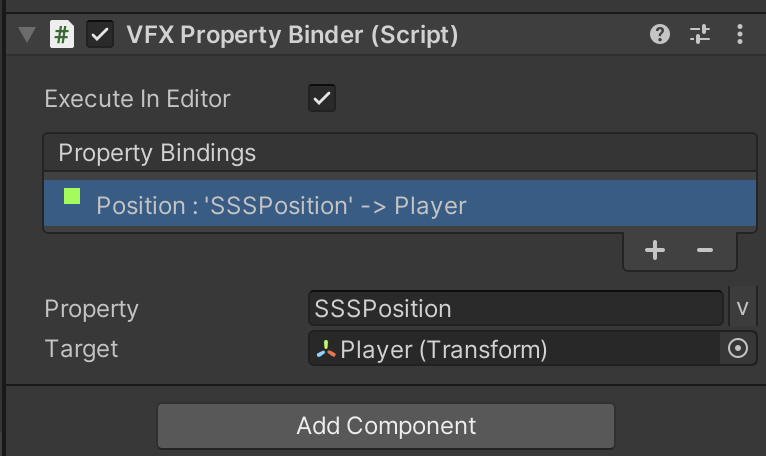
준비 5. VFX Property Binder
이름 설정할수 있음 SSSPosition 이라고 티나게 바까봄.
아까 위에있는 변수랑 이름일치가 중요.
준비 6. VFX 그래프 만들자
1. 여러번 spawn 되게하기
peridic Burst
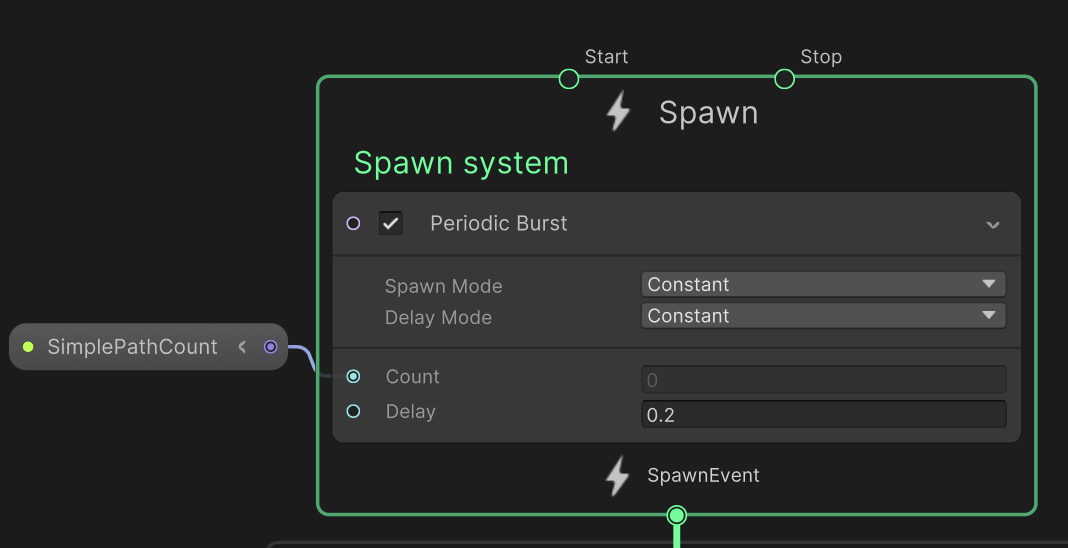
2. Count는 선(path) 두개.
delay는 0.2초간격으로.
3. 가끔 안보이거나 중심점이상하면 Bounds 박스 확인. capacity는 파티클 총개수. 센터랑 size 크게 잘맞춰야 보임.
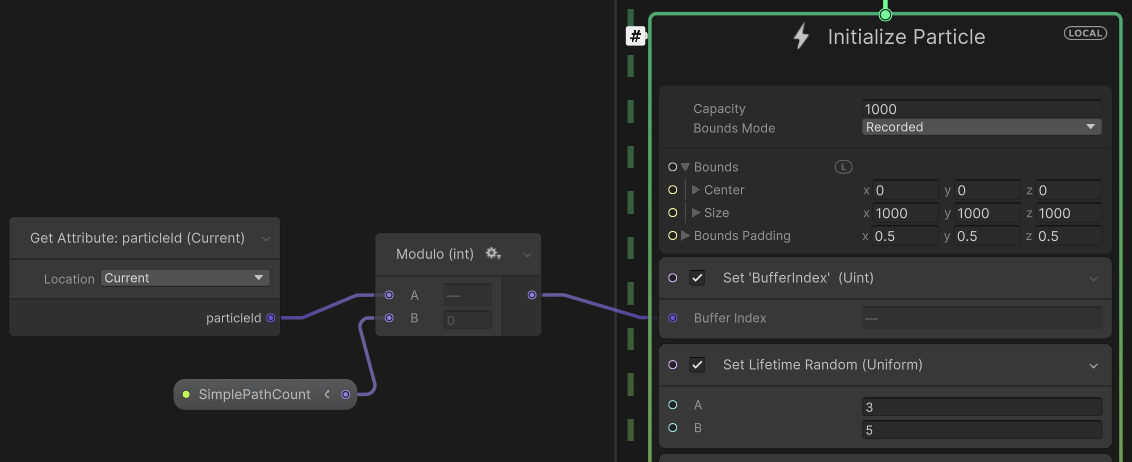
4. 파티클 아이디 get
이게 중요한데 발생하는 파티클에 번호가 붙어있다. 이거를 패스 개수로 나누면. *버퍼인덱스를 얻을 수 있다.
파티클을 계속 발생하니까, 2개의 선이 있으니까.. 몰라 그렇데
5. *bufferindex는 set custom 노드로 만들어야한다. 이름과 변수 성격 uint 를 잘 설정해줘야한다.( 인스펙터창에 있음)
버퍼인덱스를 먼저 설정해주고
6.get bufferindex 할수있다. 왜냐면 set을 위에서 해줬으니까.
이것도 get custom node다. 변수명을 갖게 잘 설정하면, 데이터를 저장하고 다시 받아올수 있는 구조다. 편함.

7. SimplePathBuffer도 우리가 만든 변수다. 밖에서ㄱ 연결할수있게 블랙보드에 만들었던것. ( 코드랑 연결되어있어서 값이 자동으로 들어옴)
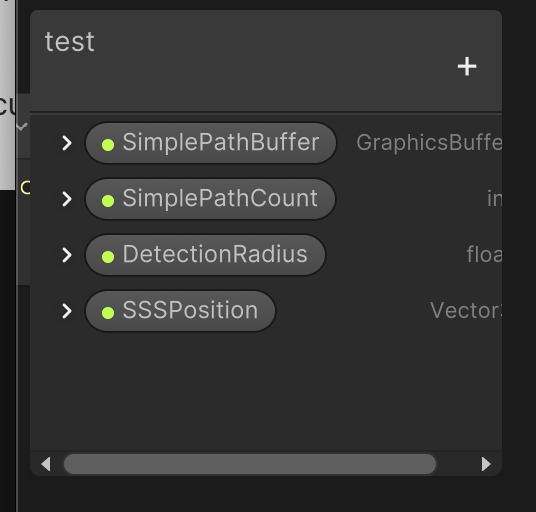
8 그래픽 버퍼의 톱니바퀴누르면 우리가 아까 코드에 작성했던 데이터 구조 이름.
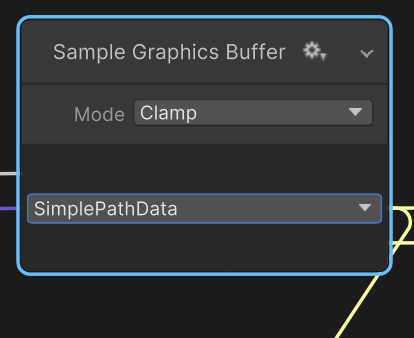
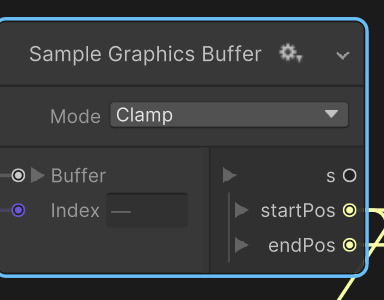
데이터 구조에 설정해놓은 시작점 끝점 가져올수있다.
9. 이거를 커스텀 노드에 저장한다. set customnode
이름 설정 주의 .
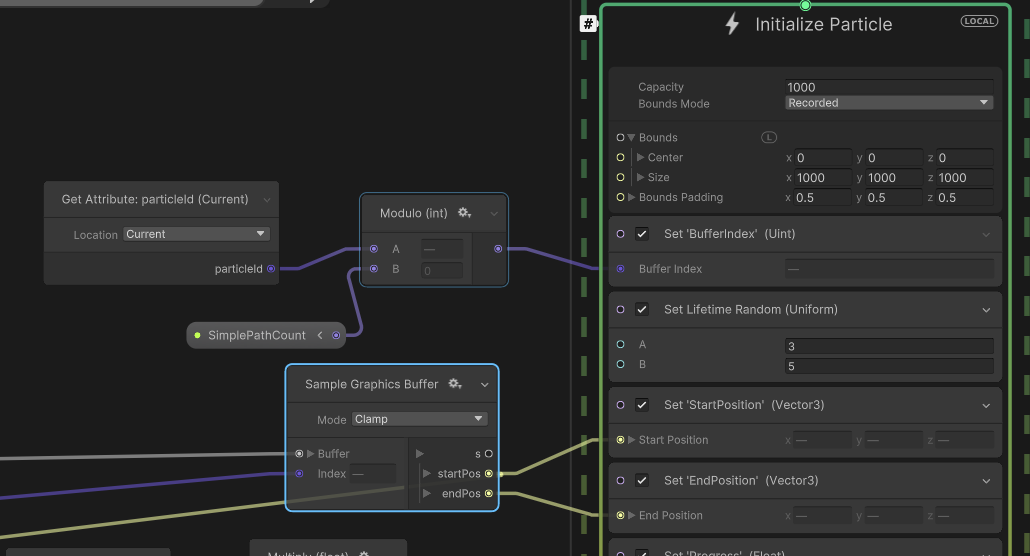
그러면 아까 말했듯 가져다 쓸수있다.
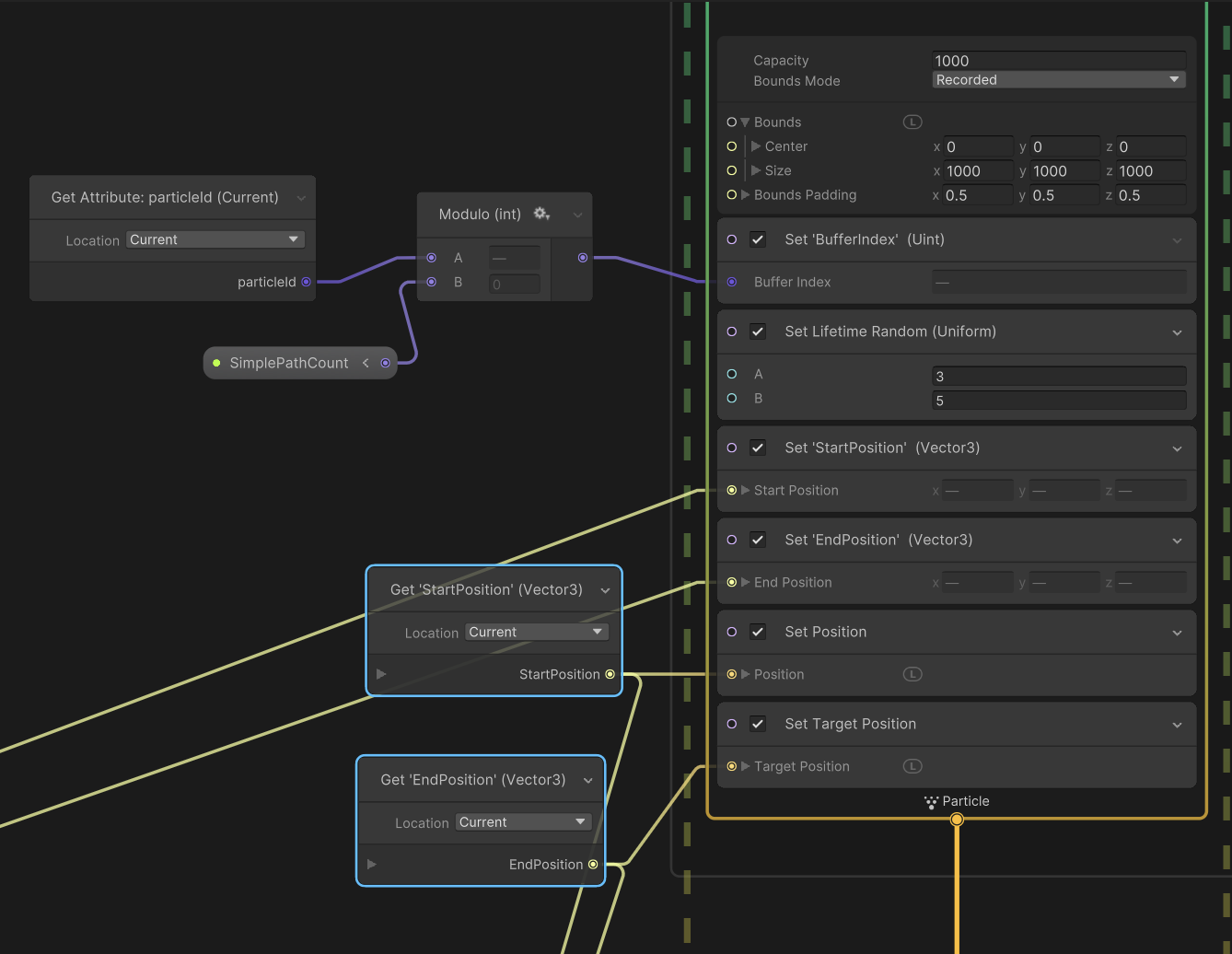
set position : 초기 시작점
set target position : 이동할점.
초기값 설정은 끝
10 . 업데이트에서 점을 이동시키자
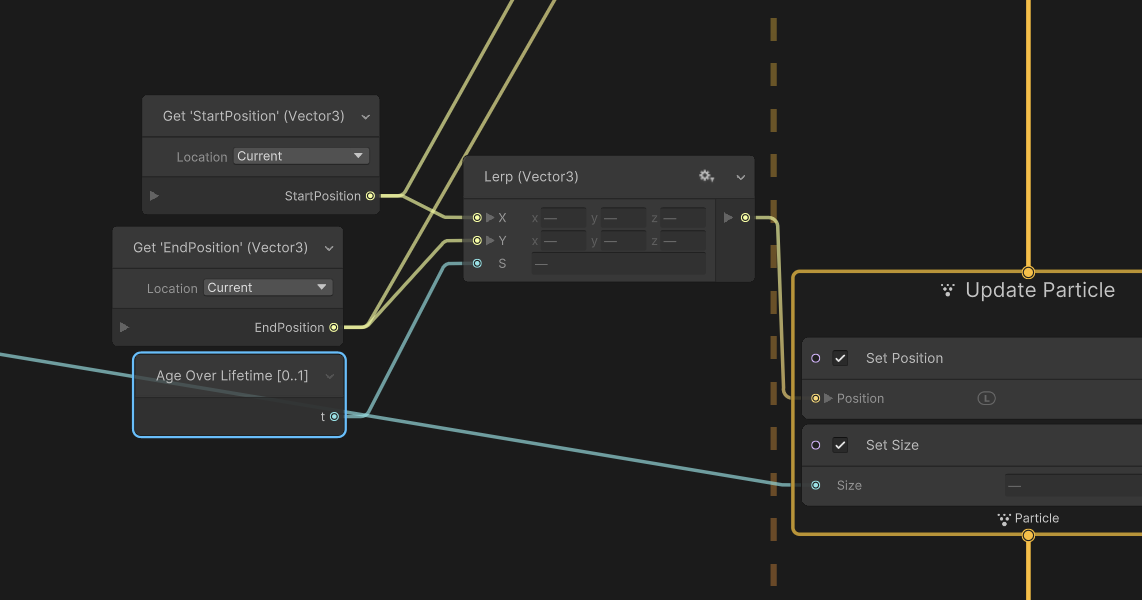
러프를 쓰면됨. (a에서 b로 s동안 이동)
라이프 타임동안 첫점과 끝점을 이동한다.
11. 인터렉션을 위한 장치.
SSSPosition에서 플레이어 위치를 불러와서
각 선의 첫 점과 거리를 비교하여.
특정 거리 내에 있으면 ( detectionRadius) 파티클의 크기를 키운다.

(VFX binder에서 플레이어의 포지션과 연결해주고 변수명을 갖게 설정했기때문에 작동한다) : 위의 단계에서 했던것
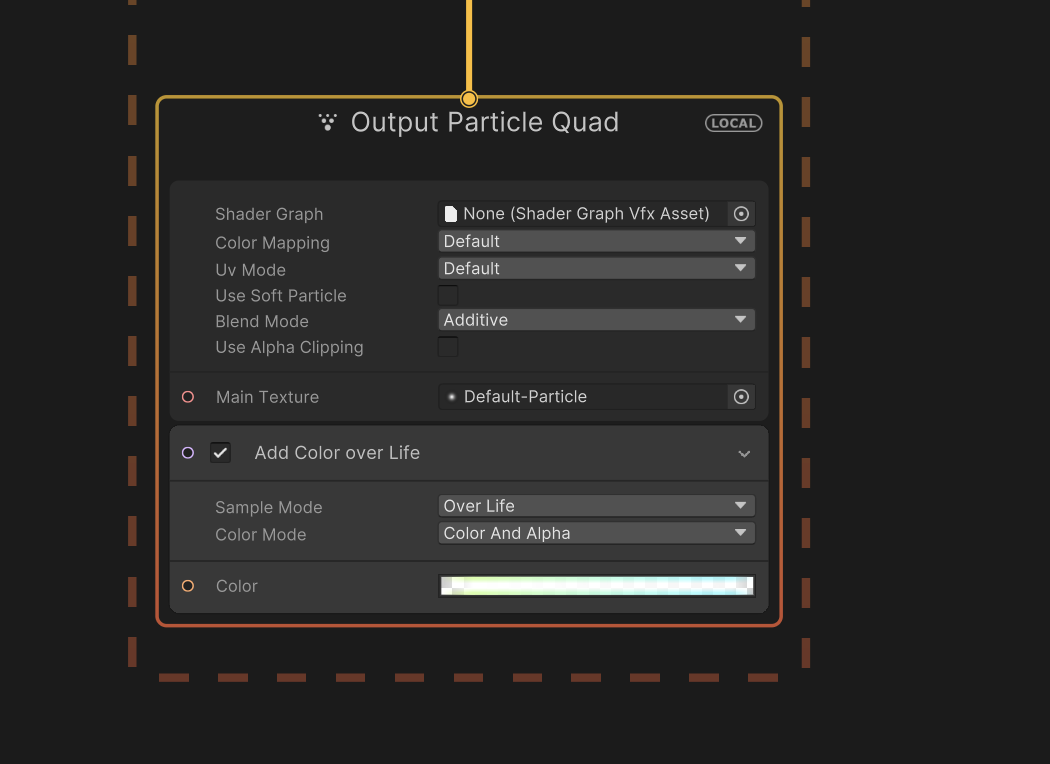
12. 마지막으로 아웃풋 어떻게 보일지 설정해주면 끝
----
다음 단계에서는 포물선만들기. 혹은 후디니에서 효과추가하기
- Total
- Today
- Yesterday
- Unity
- 라즈베리파이
- opencv
- opticalflow
- node.js
- krea
- RNN
- VR
- sequelize
- TouchDesigner
- houdini
- 후디니
- colab
- OpenClaw
- Express
- Python
- Midjourney
- 유니티
- three.js
- docker
- DeepLeaning
- VFXgraph
- MQTT
- 4d guassian splatting
- AI
- CNC
- Java
- 4dgs
- MCP
- Arduino
| 일 | 월 | 화 | 수 | 목 | 금 | 토 |
|---|---|---|---|---|---|---|
| 1 | 2 | 3 | 4 | 5 | 6 | 7 |
| 8 | 9 | 10 | 11 | 12 | 13 | 14 |
| 15 | 16 | 17 | 18 | 19 | 20 | 21 |
| 22 | 23 | 24 | 25 | 26 | 27 | 28 |